Attaching Reservations to Bookings
Once a booking is created users can create/attach individual reservations and tag them to the booking. When a room type is assigned to the reservation, Versa will automatically recognize the reservation as a pick-up and reduce the room count from the total number of rooms blocked for the booking.
Perform the following steps to create a reservation for a booking:
Navigate to the Reservations module and click Create Reservation in the Reservation List tab. The Reservation Details tab of the Create New Reservation screen is displayed.
Fill out the mandatory fields in the Reservation Details tab. See the Creating New Reservations section in this document for more information on the fields and how to create a reservation.
Enter the booking ID in the Booking ID field. The following message box will be displayed.
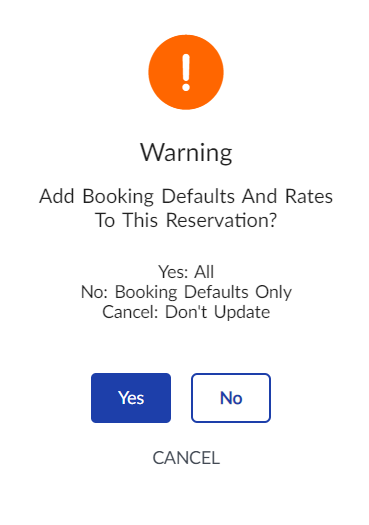
Click Yes to apply the booking defaults to the reservation.
Navigate to the Availability tab.
Select a room type/tariff configured for the booking.
The room type/tariff blocked for the booking will be displayed along with the group name in the Tariffs grid.
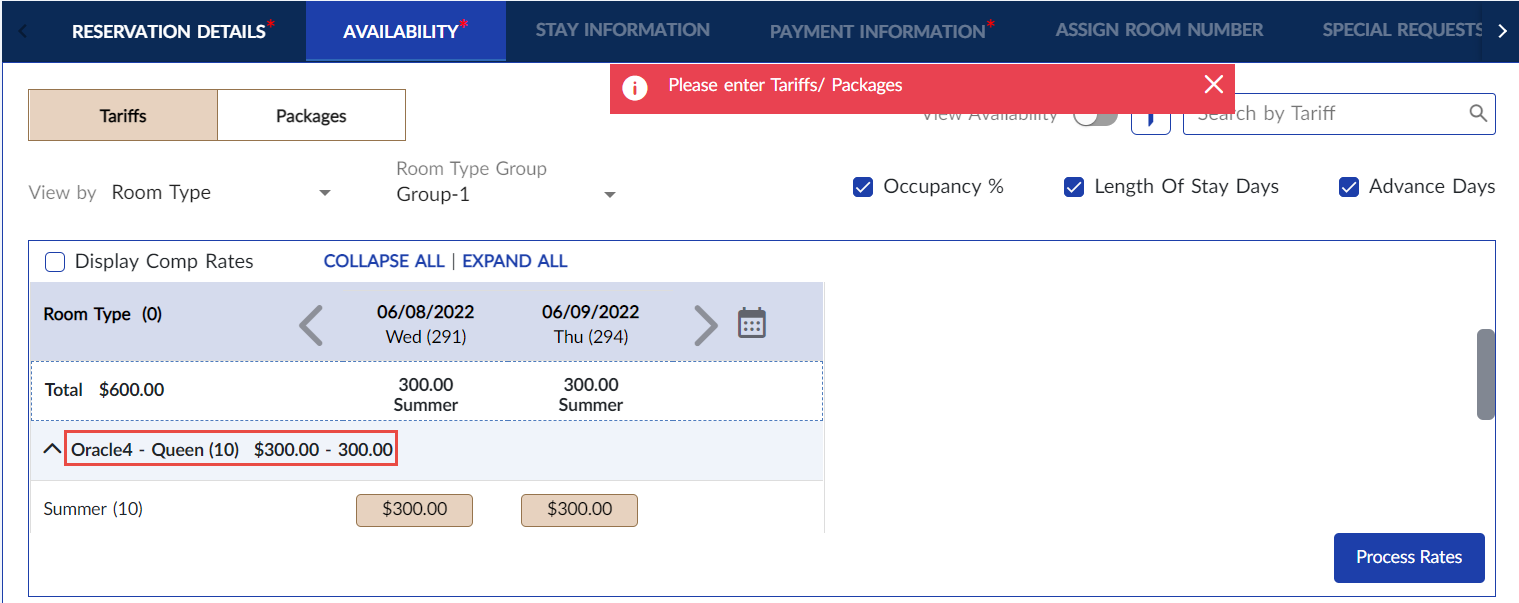
Select the rates for all dates. The rates defined for the room type in the Block Rooms screen while creating the booking will be displayed here.
Click Process Rates.
Fill in the mandatory fields in other tabs.
Click Book.
Click Save & Close.
Navigate to Groups à Bookings à Edit Booking.
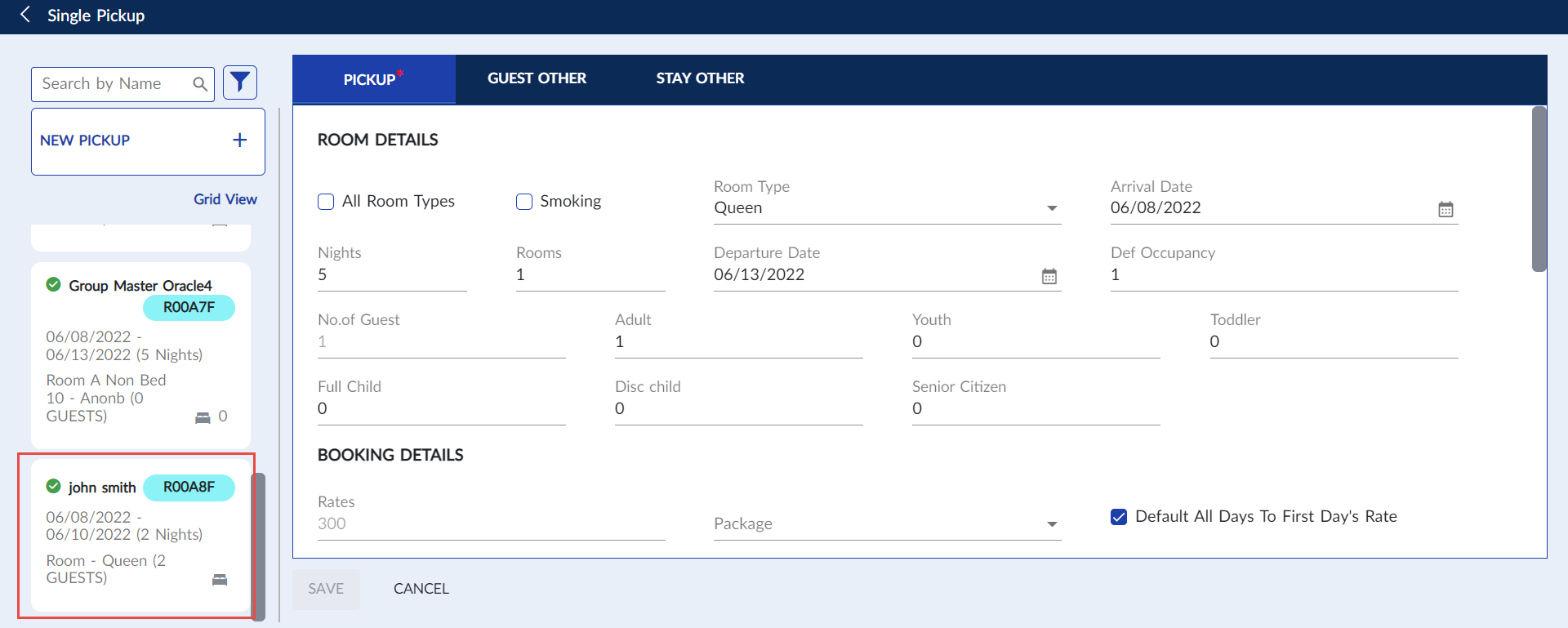
Expand the action bar and select Add Single Pickup. The attached reservation will be displayed in the Single Pickup screen.